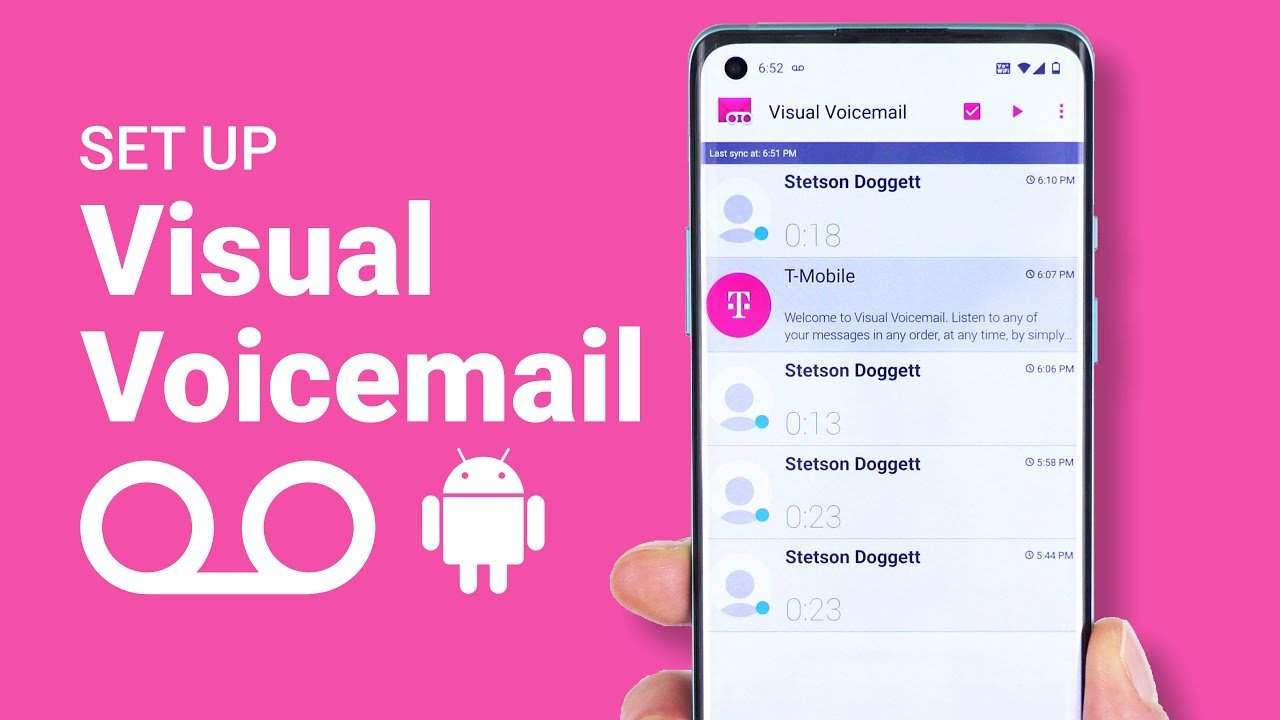
Managing voicemails doesn’t have to feel outdated or time-consuming. With modern smartphones, android visual voicemail setup allows users to view, manage, and listen to messages directly from their device without dialing into a mailbox.
In this guide by The Daily Business, you’ll learn how to set up visual voicemail on Android, troubleshoot common issues, and make the most of this convenient feature.
What Is Visual Voicemail?
Visual voicemail is a feature that displays your voicemail messages in a list format—just like emails or text messages. Instead of calling your voicemail service and navigating menus, you can:
- See who left a message
- Read transcriptions (on supported devices)
- Play messages in any order
- Delete or save messages easily
Requirements for Android Visual Voicemail Setup
Before starting the android visual voicemail setup, make sure you have:
- A compatible Android device
- Carrier support for visual voicemail
- Active voicemail service
- Updated Phone app
Some carriers may charge extra for this feature, so check your plan first.
How to Complete Android Visual Voicemail Setup
Follow these simple steps to activate visual voicemail on your Android phone:
Step 1: Open the Phone App
- Launch your default Phone app
- Tap on the Voicemail tab (usually at the bottom)
Step 2: Enable Visual Voicemail
- If prompted, tap Set up
- Enter your voicemail password (if required)
Step 3: Grant Permissions
- Allow access to contacts, storage, and microphone
- These permissions help display and manage voicemails
Step 4: Customize Settings
- Set notifications
- Enable voicemail transcription (if available)
Step 5: Test the Feature
- Ask someone to leave a voicemail
- Check if it appears visually in the app
Alternative Method: Using Carrier Apps
If your default Phone app doesn’t support visual voicemail, try your carrier’s official app. Many telecom providers offer their own apps with advanced voicemail features.
Common Issues and Fixes
Sometimes the android visual voicemail setup may not work as expected. Here are quick fixes:
1. Voicemail Tab Missing
- Update your Phone app
- Restart your device
2. Setup Not Working
- Reset network settings
- Reinsert SIM card
3. Transcription Not Showing
- Ensure your language is supported
- Check internet connection
4. App Crashes
- Clear cache and data
- Reinstall updates
Benefits of Visual Voicemail
Using visual voicemail provides several advantages:
- Time-saving: No need to call voicemail
- Better organization: Messages are listed clearly
- Quick access: Listen anytime, anywhere
- Enhanced productivity: Ideal for business users
Tips to Optimize Your Voicemail Experience
- Regularly delete old messages to free up space
- Enable notifications to never miss important calls
- Use transcription for quick message previews
- Keep your apps and system updated
Conclusion
Completing an android visual voicemail setup is a simple yet powerful way to modernize how you handle voicemails. With just a few steps, you can transform your communication process into something faster and more efficient.
For professionals and everyday users alike, this feature adds convenience and control—making it a must-have tool in today’s digital world.
Stay updated with more practical guides like this from The Daily Business.